Showing posts with label keywords. Show all posts

Sunday, 14 October 2018

Getting your book description right - Two examples


Let’s take a look at the keywords and descriptions of two best-selling ebooks

Here’s what a reader would see if they looked at Amazon’s page for ‘My Sister's Grave’ by Robert Dugoni which on 18th October 2016 was number 6 in Amazon’s best seller list.
Would that description inspire you to click the ‘Read more’ link? No? I wouldn’t either. Checking I found the full description was 778 characters, none of the nine keywords the book uses are in the description. Eight of them are Amazon categories but one ‘United States’ isn’t and seems rather pointless ('US' might have been a better choice).  I suspect this ebook appears in Amazon’s top listings because of the reputation of the author (Ranked #40 at Amazon at the time of writing) and because of the publisher paying to have it promoted. If I was the author, I would be upset at the publisher (Thomas & Mercer) for doing so little. You can see Amazon’s top 100 authors at:      https://www.amazon.com/author-rank#1

My second example is ‘A Shade of Vampire’ by Bella Forrest. Here’s what you would see before that ‘Read more’ link:
Notice the use of bold text? You can use limited HTML to do this in a description. Notice also the writer has appealed to Twilight, The Mortal Instruments and Vampire diaries fans also. Be careful here that you don’t mention other author’s names or copyright items since this is likely to get your book a lower ranking. In this case, especially since the description stops mid-sentence, I would read on.
This time the description is 3,070 characters long and includes short review statements. Bella Forrest appears to be self-published. She uses 17 keywords/tags. Here’s how she uses them:
·         One appears in the title (vampire)
·         Romance and fantasy are keywords used in the description
·         Romance, vampire, werewolves, shifters, coming of age, romantic, angels, ghosts, psychics are compulsory keywords for specific Amazon categories
·         Werewolves & Shifters, Science Fiction & Fantasy, Paranormal & Urban, Teen & Young Adult, Demons & Devils, Witches & Wizards, Paranormal & Fantasy are Amazon categories
Seems to me Bella Forrest has done a pretty good job of her keywords and description.
No description is ever perfect though so it’s always worth revisiting and tweaking the next time you produce a new book edition. This is what Bella Forest's description looks like now:
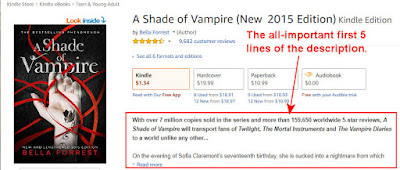
It's certainly worth mentioning those extra 2 million sales and the 5-star reviews but that extra text has pushed out of visibility 'she cannot wake. A quiet evening walk along a beach brings her face to face with a dangerous pale' It's still effective though but perhaps that blank line could have been made narrower using embedded styles in the HTML Unfortunately Amazon allows none of that 'clever stuff' in their author HTML Only the following tags are allowed:
HTML Tag
Description
<b> Formats enclosed text as bold. Use: <b>This text will be bold</b>
<br> Creates a line break. Use: <br>
This text is forced to the next line
<em> Emphasises the enclosed text; generally formatted as italic.Use: Normal text <em>emphasised text</em>
<font> Determines the appearance of the enclosed text. Use: It is possible to use <font face="Courier New, Courier, monospace">a different choice of font</font>
<h1> to <h6> Formats enclosed text as a section heading: <h1> (largest) through <h6> (smallest). Use:
<h1>This is heading 1</h1>

<i> Formats enclosed text as italic. Use: <i>italic text</i>
<li> Identifies an item in an ordered (numbered) or unordered (bulleted) list. Use: See <ol> and <ul>
<ol> Creates a numbered list from enclosed items, each of which is identified by a <li> tag. Use:
<ol>
<li>This is first</li>
<li>This is second</li>
<li >This is third</li>
</ol>
This produces:
  1. This is first
  2. This is second
  3. This is third
<p> Defines a paragraph of text with the first line indented; creates a line break at the end of the enclosed text. Use:
<p>This is some text which you want displayed in a paragraph. This paragraph is not very interesting but then… maybe I should tell you about the next book I'm writing. It's about time travel.</p>
<p>Nope - you don't want to hear about that. This is the next paragraph.</p>
This produces:

This is some text which you want displayed in a paragraph. This paragraph is not very interesting but then… maybe I should tell you about the next book I'm writing. It's about time travel.

Nope - you don't want to hear about that. This is the next paragraph.
<pre> Defines preformatted text. Use:
<pre>Here's an example of preformatted text. It's usually monospaced.</pre>
<s> Formats text as strikethrough. See also, <strike>.
<strike> Formats text as strikethrough. See also, <s>. Use: <strike>this text is struck out</strike
<strong> Formats enclosed text as bold. See also, <b>.
<sub> Formats enclosed text as subscript: reduces the font size and drops it below the baseline. Use H<sub>2</sub>O which produces H2O
<sup> Formats enclosed text as superscript: reduces the font size and places it above the baseline. Use: πr<sup>2</sup> which produces πr2
<u> Formats enclosed text as underlined. Use: <u>This text will be underlined</u>
<ul> Creates a bulleted list from enclosed items, each of which is identified by a <li> tag.
. Use:
<ul>
<li>This is first</li>
<li>This is second</li>
<li >This is third</li>
</u>
This produces:
  • This is first
  • This is second
  • This is third
NOT Allowed HTML/CSS <div> <span> and any CSS

Extra keywords

Did you notice that I said both examples of book descriptions used more than the seven keywords Amazon allows you to use? That is possible if you produce an epub book with meta tags and use that as the source document at Amazon. They will still expect you to submit up to seven keywords but also appear to use the extra ones you put in epub meta tags.

Description content

Now - what about the content of your book description? The first five lines of it are by far the most important. In those five lines of text you must capture enough of the readers interest to make them want to click that 'Read more.' Work at those five lines. Use power words - words that have great emotional impact. Above all leave the reader on a cliffhanger where they have to find out what comes next. Try putting the sentences through a headline check - there's a good one at https://coschedule.com/headline-analyzer Try and get a score of 60+ for each sentence.

Keywords

Book descriptions are searched by Amazon for keywords other than the seven they ask for. Try including more keywords in your description to capture those people who search for books like yours but not with your chosen keywords.  There's an art to choosing keywords and if you have only seven, chosen in ten minutes when you came across that section of KDP, then you haven't understood that art yet, But that's the subject of a 'Getting your keywords right' blog.

Tuesday, 18 March 2014

Using SmartURL to promote your book

It's a pain to have to change an Amazon URL to make it work in a different country. Several link shortening services offer a single link which will take the user to Amazon's site in their country. SmartURL seems the pick of the bunch for authors.

Advantages

  • A single, easy-to-remember link to your book at Amazon which works in all countries.
  • Earn an extra 9% from Amazon by adding affiliate codes.
  • Add keywords which raise your book's popularity rankings
  • Change the link easily, for example if your free book is taken out of 'price matched' in one country you can direct readers to a site where they can get it free.
  • Experiment with different keywords - even having different keywords for each country.
  • Works with iTunes and others too!
  • Track clicks on your links.
  • You can even get a QL code.

How this works. 

Smarturl.it is a link shortening service which is very effective for producing a single link which takes the reader directly to the Amazon site in their country. It allows authors to add affiliate links and keywords to the link. You can also request a particular, easy to remember link.

What you'll need

1. A smarturl account - it's free get it at http://smarturl.it
2. Amazon affiliate accounts in at least the US, UK and Canada. You can sign up for more if you wish. To get those you'll need to have a website or blog with enough traffic to make it attractive to Amazon. Don't worry if they don't accept you as an affiliate yet but you'll miss out on the extra 9% offered in affiliate payments.
3. Some spare time to research effective keywords at Amazon. For how to do this - spend some money and buy 'Make A Killing On Kindle (Without Blogging, Facebook Or Twitter). The Guerilla Marketer's Guide To Selling Ebooks On Amazon' by
Michael Alvear http://smarturl.it/mak Let me warn you though - although you can learn valuable stuff from this book, I don't agree with Michael that we are wasting our time promoting using social media. Getting the keywords right will help your book sales but it's more effective if you use social media as well.

Ready? Here's how to do it.

Let me show you how I made the link to the book I just told you about.
  1. Go to smarturl.it and log on. Click the 'create smartURL' link, (in the black bar)
  2. In a different tab go amazon.com and find the book or product you want to link to. I suggest you enter the book ASIN and the keywords you want to use in Amazon's search box. Don't forget to add the author name as keywords too.
I'm going to use Michael Alear's book mentioned above as an example; it's ASIN is B007XVWEIU - I used the following keywords in the search box
B007XVWEIU Make a killing on Kindle Michael Alvear marketing Kindle keywords selling books e-books on Amazon
Notice I didn't use any commas to separate them.

  1. On the results page click the link to Michael's book. Your search parameters will follow you and you'll get the URL
    http://www.amazon.com/Killing-Blogging-Facebook-Guerilla-Marketers-ebook/dp/B007XVWEIU/ref=sr_1_1?ie=UTF8&qid=1395149205&sr=8-1&keywords=B007XVWEIU+Make+a+killing+on+Kindle+Michael+Alvear+marketing+Kindle+keywords+selling+books+selling+e-books+on+Amazon
  2. Copy the URL from your browser and paste it into a text editor (not MS Word - use Edit or a text editor you like such as EditPlus)
    You could probably edit out keywords such as 'a' and 'on' but it isn't worth the bother.
  3. If the book is NOT free then, to this URL, add your affiliate tag for Amazon.com I usually bury it somewhere inside it just before '&keywords' Mine would now read:
    http://www.amazon.com/Killing-Blogging-Facebook-Guerilla-Marketers-ebook/dp/B007XVWEIU/ref=sr_1_1?ie=UTF8&qid=1395149205&sr=8-1&tag=jaydax08&keywords=B007XVWEIU+Make+a+killing+on+Kindle+Michael+Alvear+marketing+Kindle+keywords+selling+books+selling+e-books+on+Amazon
    Remember - only add an affiliate tag to books which are NOT free. Amazon don't like you using tags for free products and may penalise you.
  4. Now look in the URL for a part starting &qid= followed by a number. Delete that entire section! In my example it will now read:
    http://www.amazon.com/Killing-Blogging-Facebook-Guerilla-Marketers-ebook/dp/B007XVWEIU/ref=sr_1_1?ie=UTF8&sr=8-1&tag=jaydax08&keywords=B007XVWEIU+Make+a+killing+on+Kindle+Michael+Alvear+marketing+Kindle+keywords+selling+books+selling+e-books+on+Amazon
  5. Now copy the link and paste it into the Default URL box in your smartURL tab
  6. Now you need to get the URL for Amazon UK and Amazon Canada and add affiliate tags if you have them. You can either go through the whole process again or just modify the amazon.com link in your text editor. I find it's easier to modify the link since all you have to do is change '.com' to '.co.uk' for the UK and '.ca' for Canada. You'll need to change the affiliate tags too.
  7. Once you have the URLs enter them in the section 'Country Destinations'. You'll need the country code for the 'Country' box. For the UK it's GB and for Canada it's CA Click the + to add more alternative countries. If you don't know the code just type in the name of the country. Add as many as you like/have affiliate codes for. Any you don't add will be added automatically  from your default URL by smartURL but they'll use their own affiliate codes - this is how they make the money to run the site.
  8. Now add a custom alias to the link. I add a three letter one. In the case of the book above I used 'mak' (from Make a Killing...). Not all of these are available so if someone already has that - try another. Don't forget the URLs are case sensitive so 'mak' is different to MAK, MaK and Mak.
  9. Add a description of the link if you wish. This helps you remember what it is when you come back to it.
    It's also possible to enter someone's email address which allows them to change the links. (If Michael Alvear reads this I'll be happy to add his email address if he sends me it - he could probably come up with better keywords)
  10. Once you are happy with everything click 'Save' and start using your new link.

What's that bit about tracking clicks?

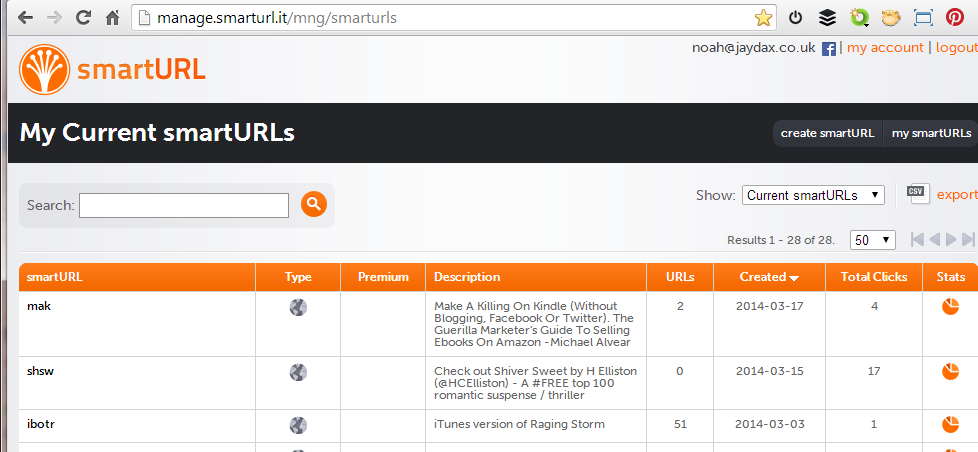
Above is an image of the control panel you get if you click the 'my smartURLs' link. At the right you'll see a mini pi chart. Click one of those and you'll get:
So that tells me: 
  • that the book was more interesting to Russian visitors than to the UK
  •  I need to check rebelmouse.com
  • just eleven clicks happened at Twitter and Facebook - that's 4.5% - maybe Michael is right after all? What do you think?
  • What went wrong on Wednesday 5th March  and Thursday 13th March?


Do you know of a similar free service which offers more? I don't. The only downside I find in using it is that like all link shorteners it can be abused and sometimes gets an orange circle from Web of Trust.


If this post has proved useful to you would you do me a favour in return? Download a FREE copy of the book I co-author - a romantic technothriller called 'Immortality Gene'. Even if you don't read it it will help our ratings. You can get it at http://smarturl.it/avi and if you want to read it, you can use a phone, a tablet, a computer or even a Kindle.